


Installation of Clavis 2.0
Set up the app and start managing your automations
Installing Clavis 2.0 is simple: download the app, create your account, register your King Gates automation, connect the Clavis Wi-Fi module, and set up your home Wi-Fi network. In just a few steps, you can start managing automatic gates and garage doors directly from your smartphone, with remote control, customized users, and always-on access.
Do you need support?
How to install Wi-Clavis
To get started with Clavis 2.0, follow a simple, guided procedure.
The system is designed to connect your King Gates automation to the app and make it manageable from your mobile device.
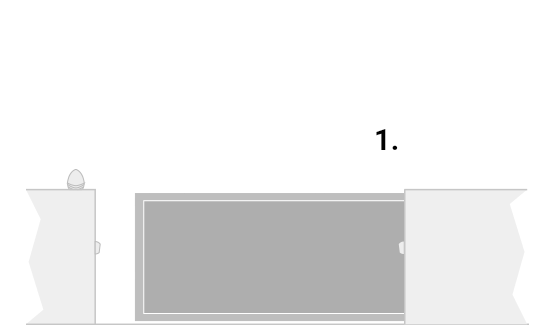
1. Install the gate according to standard procedures.
Before setting up Clavis 2.0, your King Gates automatic gate or garage door must already be installed and functioning.
The automation installation must be carried out following the standard procedures provided for the model used, including the correct connection of the electronic control unit.
Clavis 2.0 and the Wi-Clavis module do not replace the installation of the automation: they are added subsequently to allow control via smartphone.
If your gate is not yet installed or configured correctly, it is advisable to complete this step first or contact a qualified installer.
Once you have verified that the King Gates automation is working correctly via remote control or traditional control, you can proceed with configuring the Clavis 2.0 app and the Wi-Clavis module.
2. Download the Clavis 2.0 app and register
Download Clavis 2.0 for free from your mobile device's store.
After installation, create your account and follow the in-app instructions to register a new automation.
3. Record the new automation
From the app you can add your King Gates automation and associate it with your profile.
The procedure is intuitive and guides you step by step through the setup, so you can connect the device and prepare it for smartphone management.
4. Connect Wi-Clavis to the control unit
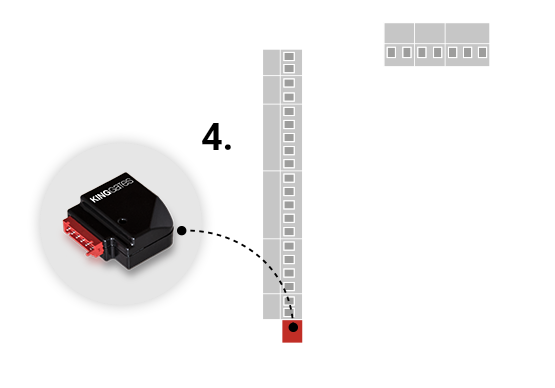
Insert the Wi-Clavis module into the King Gates control unit.
The module allows you to connect the automation to the app via Wi-Fi, making it possible to remotely manage the gate or garage door.
5. Choose your home Wi-Fi network
Select your home Wi-Fi network, enter the password, and complete the setup.
Once connected, your automation can be managed through Clavis 2.0 directly from your smartphone.


Do you need support?
If you have any questions while installing or configuring Clavis 2.0, you can consult the guide or contact King Gates support.
What you can do after setup
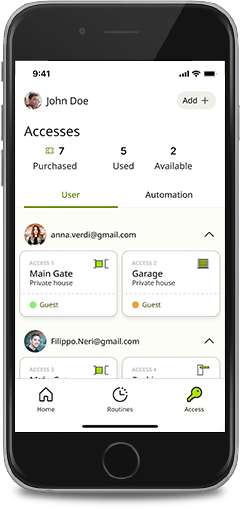
After installing and configuring Clavis 2.0, you can use the app to manage King Gates automations in a simple, secure and personalized way.
Control automation remotely
Check the status of your gate or garage door and manage opening and closing even when you're not at home.
Use a single dashboard
Monitor connected automations from a clear dashboard, designed to make daily management easier.
Add new users
You can add additional users and allow them to access the automation based on the permissions you set.
Set permissions and time slots
Customize access by choosing who can use the automation and during which time slots.
View activity logs
Monitor activities through detailed logs and see when automation is being used.
Using geolocation
Choose between manual, automatic or semi-automatic opening based on your usage needs.
Frequently Asked Questions about Installing Clavis 2.0
How do I install Clavis 2.0?
To use Clavis 2.0 you need to download the app, register, add your King Gates automation, connect Wi-Clavis to the control unit and configure the Wi-Fi network.
Do I need to modify the gate installation?
No, the installation methods for the gate and the control unit remain unchanged.
Where can I download Clavis 2.0?
You can download Clavis 2.0 for free from your mobile device's store.
What is Wi-Fi 2.0?
Wi-Clavis is the module that connects the King Gates automation to the home Wi-Fi network and allows management via app.
Can I manage the gate remotely after setup?
Yes, after connecting the automation to the app, you can check the status of the gate or garage door and manage opening and closing remotely.
Can I add more users?
Yes, Clavis 2.0 allows you to add additional users and set custom permissions and time slots.
Do you need Wi-Fi?
Yes, to connect the automation to the app you need to configure your home Wi-Fi network via the Wi-Clavis module.